Enable it in desktop Codex App first
Mobile setup must start from Codex App on Mac or Windows. Codex CLI or IDE Extension alone is not enough.
 PhotonMark Codex
Remote Control
Remote control does not run Codex directly on the phone. It connects an iPhone, iPad, Android phone, or another Codex App device to a logged-in, online, awake Mac / Windows Codex App host. Your project files, commands, browser, plugins, MCP, Computer Use, and PhotonMark config all come from that host.
Desktop Codex App host
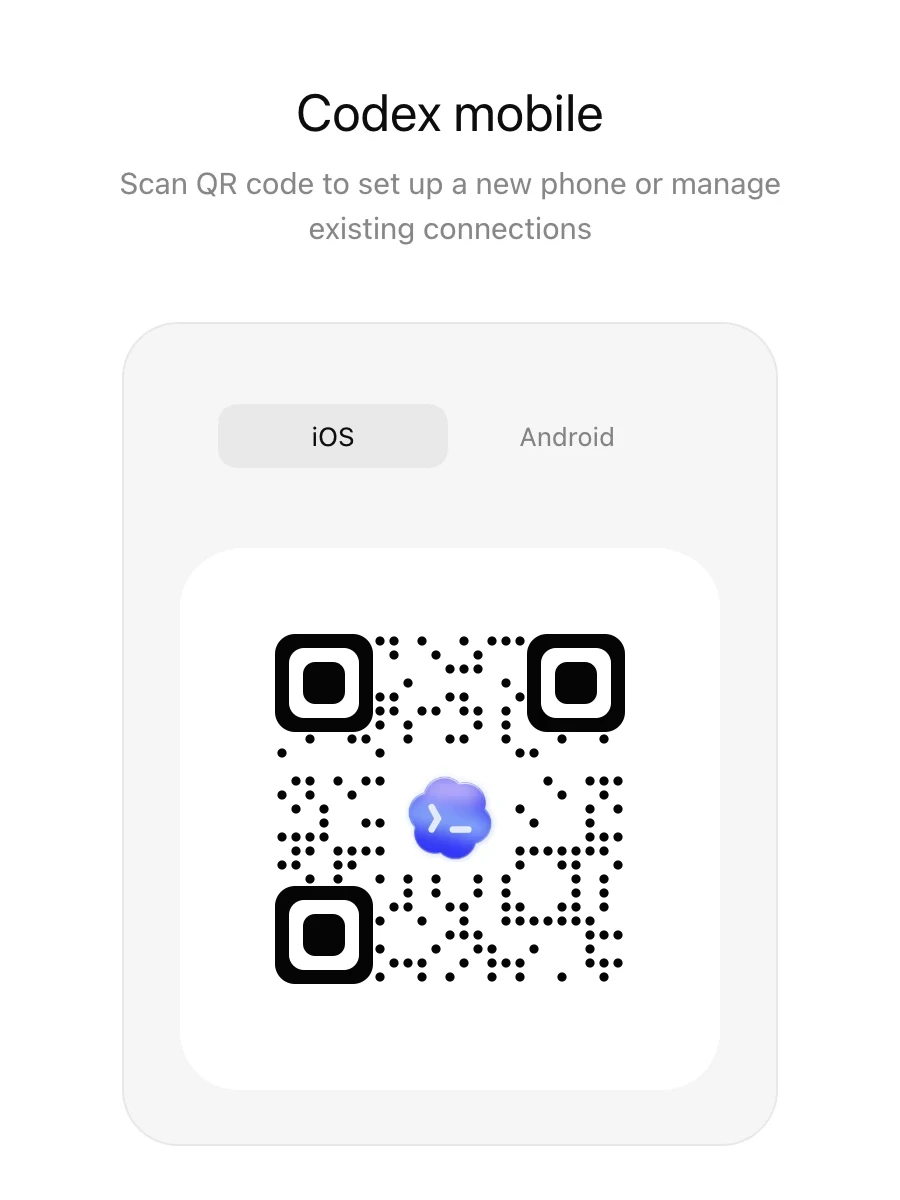
Mobile setup must start from Codex App on Mac or Windows. Codex CLI or IDE Extension alone is not enough.
In Settings > Connections and enable the relevant option, such as Allow this device to be discovered and controlled. It means authorized devices in your ChatGPT account can discover and control this computer.
prevent_idle_sleep can reduce computer sleep during long tasks; remote_connections and remote_control can remain for compatibility, but the Codex App Connections state is the source of truth.
Codex App can log in with an OpenAI API key, but that is not the same as PhotonMark Pay. API-key login uses your own OpenAI Platform API bill; Codex Pay changes the model request and quota source through PhotonMark TOML.
For local desktop Codex App, CLI, or IDE Extension use, OpenAI API-key login is officially supported. But it does not use ChatGPT plan quota and does not use PhotonMark Pay balance.
To control desktop Codex App with the ChatGPT mobile app, the host and phone still need to use the same ChatGPT account and workspace that can log in normally. This authorized-device binding cannot be replaced by an OpenAI API key.
After completing ChatGPT sign-in and mobile pairing, download and run the Codex Pay installer from the PhotonMark Dashboard. It keeps the built-in openai provider, configures the fixed /openai/v1 endpoint, and adds the PhotonMark Gemini models to the model picker without manual TOML editing. Enter the Pay API Key separately through Use API Key in Codex; the key is not written into TOML.
If a free ChatGPT account requires phone verification, MFA, SSO, passkey, or another account check when logging in or enabling Codex, PhotonMark Pay cannot bypass that OpenAI account verification. Use an account that can already log in to ChatGPT mobile and see Codex, or complete OpenAI's verification flow first. API-key login can be used for some local Codex workflows, but do not treat it as a replacement for mobile remote-control account binding.
Open the Codex App that will act as the host and click Set up Codex mobile. This flow enables remote access for this computer and shows a QR code.
Open Settings > Connections and confirm this computer allows authorized devices to discover and control it. If you see Allow this device to be discovered and controlled, turn it on.
This means authorized devices in your ChatGPT account can discover and control this computer. It does not expose the computer to the public internet.
Scan the QR code with the ChatGPT app on iPhone, iPad, or Android, confirm the same ChatGPT account and workspace, and complete verification. After success, this host appears in mobile Codex.
Open this host's project from the phone and send a simple instruction, such as viewing project files or running a read-only command. After confirming output, approval requests, screenshots, or diffs are visible, use it for longer tasks.
If your user-level ~/.codex/config.toml already contains the three lines below, you can keep them. They usually make the host more suitable for remote connections and reduce sleep during long tasks. But do not use these three lines alone to decide remote control is enabled; the real connection state still depends on Codex App Settings > Connections.
[features]
prevent_idle_sleep = true
remote_connections = true
remote_control = trueRun the installer from the corresponding Dashboard card. For Pay, it keeps model_provider = "openai" and adds the PhotonMark Gemini models to the picker automatically; enter the API Key separately. Link / Boost can still use the complete dedicated TOML when manual control is necessary, but their token-bearing URLs must not be shared.
Usually no. The phone only controls the desktop host; as long as the host has PhotonMark Codex configured, remote sessions use the same config on that host.
Send follow-ups from the phone, answer Codex questions, and continue work already started on the desktop.
Review terminal output, test results, diffs, screenshots, and approve next actions when needed.
Project files, MCP, plugins, browser, Computer Use, and logged-in websites all come from the host.
| Question | Check first |
|---|---|
| Codex or this computer is not visible on the phone | Upgrade ChatGPT app; confirm the same account and workspace; confirm desktop Codex App is online and allowed to be discovered and controlled in Connections. |
| Task suddenly stops after connection | Check whether the host slept, lost network, quit Codex App, or a laptop was closed without an external display. |
| Computer Use or browser does not work | These capabilities must be enabled on the host. On Windows, Computer Use runs in the foreground and the host desktop needs to remain usable. |
| PhotonMark service is not active | Check the host's user-level config.toml contains the dedicated PhotonMark TOML, then restart Codex App or start a new session. |
Official OpenAI references: Remote connections, Codex app settings, Configuration Reference.