 PhotonMark
 Guide
New User Guide
AI Chat
Prefer not to install a client? Use your browser.
Open PhotonMark AI Chat and sign in with your existing PhotonMark Cloud Account. No additional registration, Codex App, ChatGPT desktop client, or CLI is required. Usage is deducted from your existing Codex Pay balance.
Native web search is available without entering a Serper, Firecrawl, Jina, OpenAI, or other third-party API key. When you need current information, ask the model to search the web. A successful search costs USD $0.001 under the existing Web Search rule; ordinary model usage is billed separately to the same Codex Pay balance.
Open AI ChatSign up for PhotonMark Cloud Account
First open the sign-up page to create a PhotonMark Cloud Account. This account can also be used for other PhotonMark services such as VPN, Google Veo, AI chat, AI agent, Private collaboration and IT services.
Create AccountLog In To Codex Service
After signing up and verifying your email, open the login page and log in to PhotonMark Codex with the same PhotonMark Cloud Account.
Log inBuy Service In The Dashboard
After login, you will enter the dashboard. You can buy or renew any service directly. Current pricing, top-up bonuses, and balance validity follow the pricing page . Pay and Boost balance may come from top-ups, renewals, limited-time bonus credit, or manually enabled grants.
| Situation | Recommended service | Notes |
|---|---|---|
| No paid ChatGPT account | Codex Pay | Use PhotonMark managed quota; no local OpenAI Platform API key or ChatGPT authorization is required. |
| Already have paid ChatGPT or Codex account | Codex Boost | Use your own quota first, then switch to PhotonMark managed quota when it is insufficient. |
| Only need stable proxy access | Codex Link | Use your own official account and Codex quota; this is only a relay / transparent proxy and does not charge by token. |
Install And First Start An Official Codex Client
First, use the Download Center install or update at least one official client: ChatGPT Desktop (with Codex), Codex CLI, or an IDE Extension. The PhotonMark dashboard auto-install script only writes the dedicated config.toml configuration; it it does not install a Codex client. If you use Desktop, first open the app, sign in to ChatGPT, and enter Codex. If you use the CLI, first run codex to complete first-time sign-in or initialization, then return to the dashboard to download the configuration script.
Run the dedicated installer
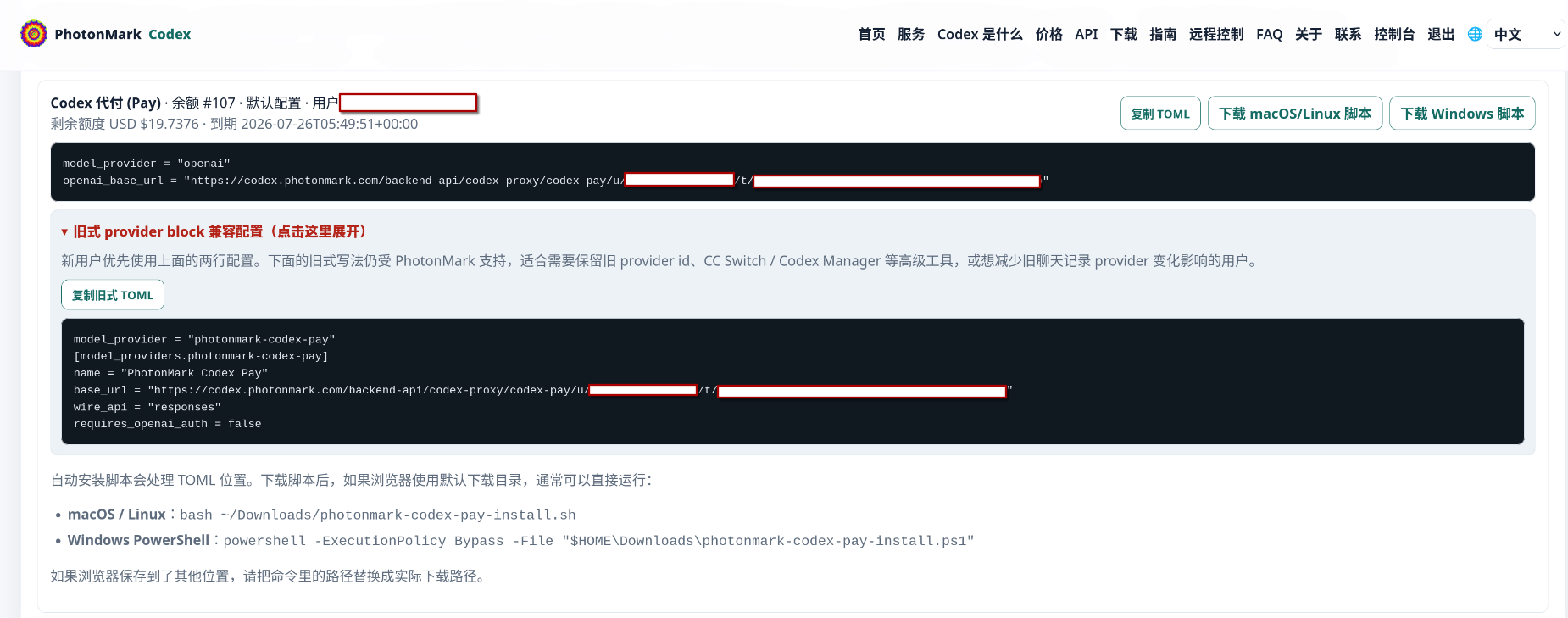
After payment or granted balance is activated, find the service card you want in Dedicated Configuration on the Dashboard and download its macOS / Linux or Windows installer. For Pay, use the installer rather than copying the routing reference: it keeps model_provider = "openai", uses the fixed /openai/v1 endpoint, sets a compatible high default, and automatically adds the PhotonMark Gemini models to the picker. Users do not edit config.toml or add model_catalog_json themselves. Then enter the separate Pay API Key through Use API Key and restart Codex. Link / Boost also keeps the built-in openai provider. Every installer backs up and updates the user-level config with permissions restricted to the current user.
- Linux / macOS:
~/.codex/config.toml - Windows:
C:\Users\your-username\.codex\config.toml - If the dashboard shows multiple Pay / Boost config blocks, each block corresponds to a separate balance or granted credit. To use a specific balance, copy or download the TOML or script below that block.
- When switching a Link / Boost configuration or balance manually, keep
model_provider = "openai"and replaceopenai_base_urlwith the complete URL shown in the target block. - Legacy custom-provider blocks remain compatible, but they change
model_providerand may hide chats created under the built-in OpenAI provider from the normal history list. Use them only to maintain an existing installation. - Current Codex releases use the standalone
alpha/searchendpoint for the built-inweb.runtool. PhotonMark supports this endpoint. The recommended built-in provider already enables it; an old custom-provider block must use the exact case-sensitive display namename = "OpenAI". - Global
model_providerandopenai_base_urlmust appear before any[section]. When merging manually, do not put globalnotify/personalityvalues under another section. - If you use CC Switch for Pay, follow the field-by-field example: provider name
photonmark, website URL, current Pay API Key, complete/openai/v1request URL, a supported model, and Responses (native). Do not paste a key from a screenshot. For Link / Boost, use the service-specific Dashboard installer instead. - Remove or comment out unused
OPENAI_API_KEY,sk-proj-*, oldopenai_base_url, old custom-provider, or old auth configuration.
Codex Pay does not require your own OpenAI Platform API key; enter the Pay API Key from the Dashboard through Use API Key in Codex. Link / Boost TOML and installer scripts contain a dedicated proxy token. Do not share any API Key, token-bearing TOML, or installer script.
Start Or Restart The Codex Client
After saving the user-level config.toml, reopen Codex Desktop, Codex CLI, or the IDE Extension, or start a new Codex session. The client reads the built-in openai provider and current openai_base_url, then connects through the matching PhotonMark service.